Storyfyre: How To Use
March 5, 2026 vers. 2.0
Storyfyre - Where books and stories are created.
Plan your book. Bible your book. Write your book.
Do it your way in Storyfyre. Storyfyre provides everything you need.
Plan, plot, map, replot, replan, write, revise, proofread, finish your story, your book, your novel.
Story bible, outline your characters, story's settings, locations, world rules, story backgrounds and places.
Let Storyfyre take care of all the details, put them all together in one place, to save time. Your way.
Discovery writers use Storyfyre's Scene Map and Scenes Outline interactively while writing first.
Use Storyfyre's Scene Map and Scenes Outline to fix/revise/fill in/replan/replot and even visually reverse outline stories and drafts that need help before publishing them.
Speed up your book release process.
If you write first, using Storyfyre Pro, it will create your Scene Map, Scenes Outline for you. You can then use them to map, plan, plot, replot, replan, create, revise, write, rewrite your novels and stories, to create the best story, before publish. See --> I am a Discovery Writer. - I write first. (Link to this coming soon.)
Plotting writers use Storyfyre's Scene Map and Scenes Outline interactively while plotting first.
Use Storyfyre's Scene Map and Scenes Outline to visually, and quickly plan/plot/outline your chapters, scenes, story beats before writing them, and even during writing them. See --> I am a Planning Writer. - I plan/plot First. (Link to this coming soon.)
Writers who are a little bit of both, which includes most of us, we use Storyfyre's Scene Map and Scenes Outline interactively while we write and think through our stories, novels, and writing projects.
Use Storyfyre's Scene Map and Scenes Outline to create/write/revise story drafts, novel drafts, book drafts, writing project drafts, before, during, or after writing them. During and after beta reads. And before publishing them.
Storyfyre helps you focus on writing your Chapters, Scenes, and Story Beats. See --> I am a little of Both. - In Between Both. I plan/plot between writing. (Link to this coming soon.)
Storyfyre promotes, and helps you keep all your writing notes and tasks, story change notes, and notes drafts all together in one safe, quick place. Letting you track and build momentum in your story writing.
Storyfyre Pro gives you a focused writing environment tied into your Scene Map/Story Map.
Storyfyre is the fastest way to think through and really get to know your story. Then use Storyfyre Pro to write it, or download/export a story writing template to your favorite writing software, either way use our next level writing software. Write faster, write better.
Best of all it goes anywhere you do, on almost any smart device.
Everything you need to create and write your stories and other writing projects.
What this Page Covers
Using Storyfyre: Basics
Storyfyre consists of a set of easy and quick-to-use software areas to help you map, plan, plot, write, create, and organize your stories better after you write them or before. To make the best of your writing thought time. To leverage it for you.
Storyfyre flexibly helps you do it your way.
Writing Projects, Books, Stories, Novels, Series, Thesis, Papers, Articles, Drafts, and More...
Storyfyre won't write your stories for you, but it will help you discover and write your stories better.
It doesn't matter if you've already written the story, write things first, or even plan and plot them out first, or somewhere in between.
Find the essence of your story. Understand your story better.
Storyfyre doesn't take away the fun of discovery while writing, it adds to the fun, enhances it, and removes the work. You can use it after you write too, to develop your story.
Our goal is to enhance the writing experience for every author. Fixing your writing thought process fixes your story, book, or novel on your terms.
Ways And Why To Use
Ways and why to use Storyfyre, and things to use Storyfyre for? See: Ways And Why To Use Storyfyre.
Get Started
The Storyfyre work area structure for each area is divided into:
- The Top Menu
- View and Filters Area
- Area Toolbar
- The Work Area
- Left and Right Side Scroll Buttons
- And depending upon your writing device screen size a left hand Hover Action Menu
Scene Map(Main Area for Show). Click, tap(touch), hold down Left and Right Side Scroll Buttons to scroll. Double-click/double-tap(touch) scroll buttons for fast scroll to beginning or end.
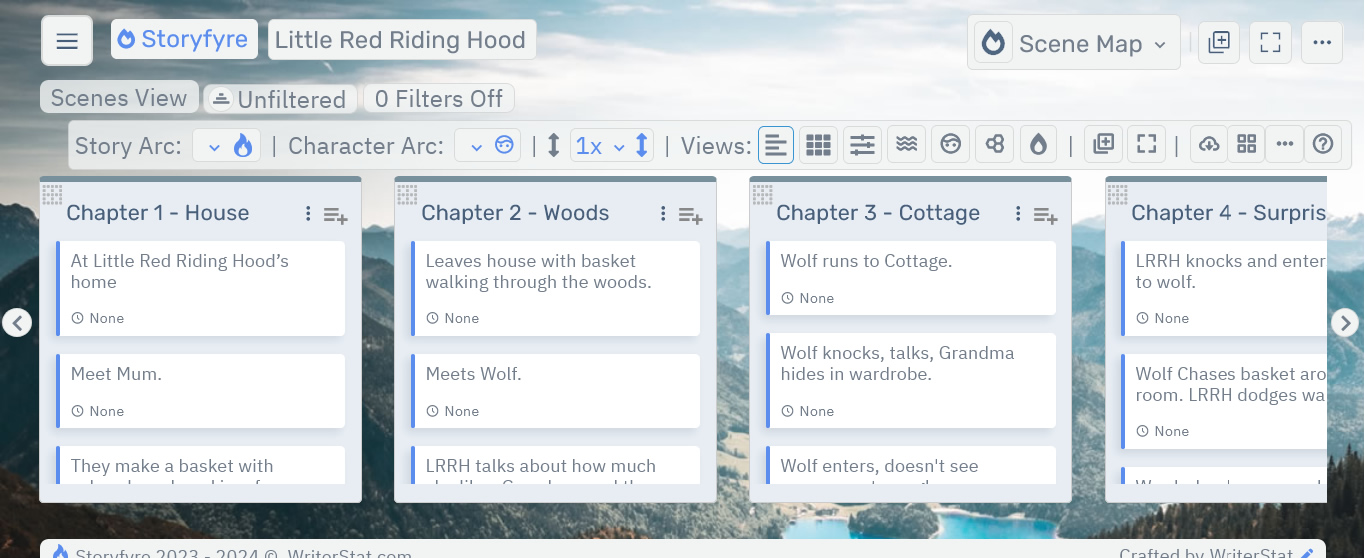
On smaller screen devices the left hand Hover Action Menu is opened by clicking the three-line hamburger menu icon on the top menu's left in the image above.
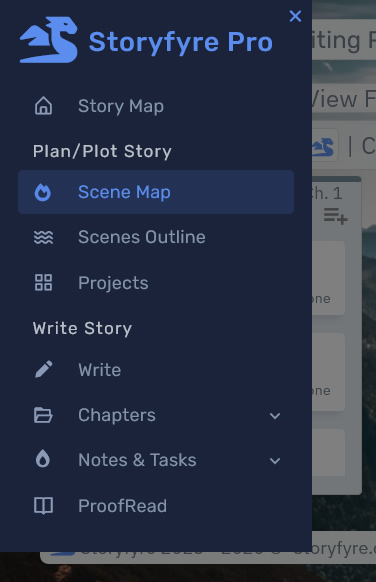
You can access extended/greater functionality like the Chapters Listing in the left hand Hover Action Menu.
Larger screens will display the left hand Hover Action Menu With Icons.
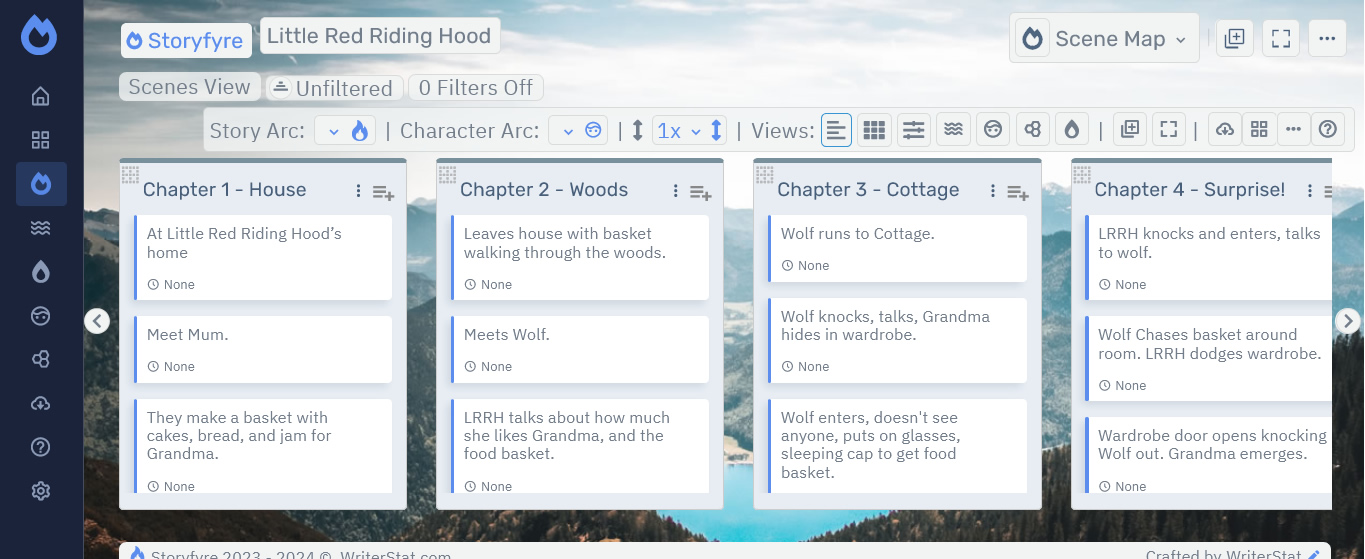
The Top Menu is the same for all areas of the software.
Each Storyfyre area has extended functionality located under the right side ellipsis menu on the Top Menu.

The View and Filters Area is different for each area of Storyfyre depending on that area's View and Filters functionality. And will be explained in that area's answers help.

The Area Toolbar is different for each area of Storyfyre depending on that area's functionality. And will be explained in that area's answers help.

Quick answers help tips for each area and other Storyfyre Answers Help Pages are located under the right side answers help menu icon on each Area's Toolbar.
The Top Menu area of Storyfyre contains the following:

- Left Side Hover Action Menu Button/Icon: Three line hamburger menu icon shows left hand hover action menu, or shows left hand hover action menu with icons depending on screen size.
- Software Name: Hover Over/Click/Tap software name to display Storyfyre Software name, Version Info, Upgrade Info, and to Upgrade Software/Add Modules(future).
- Project Name: Name of your writing project.
- Area Quick Menu: Displays the current area you are in. Click for a quick area dropdown menu that displays all of the areas to choose from or use the quick area icons from each area's toolbar.
- Area Specific Functionality Icons: Extra functionality icons specific to the Storyfyre area or view. Ex: Add Chapter, Add Character, Add Story Setting...
- Expand Icon: Opens the software in fullscreen, hides the browser areas.
- Ellipsis Create/Customize Menu Button: 3 dot ellipsis button opens the Create/Customize Menu for more functionality.
Contains area specifics like Add New Chapter, Add New Character, Add New Story Setting, for each area, along with Personalize, Edit User, Edit Password. Personalize your software.
Area specifics like Add New Chapter, Add New Character, Add New Story Setting, Change Layout, and Personalize are also on each Area's Toolbar.
Layout condenses the work area's layout. You can also increase the work area's Chapter's Area length under the Height menu on the area's toolbar.
Personalize allows you to set/select a software background image, and set certain app settings.
Edit User allows you to edit your user info, name, etc...
Edit Password allows you to edit your password.
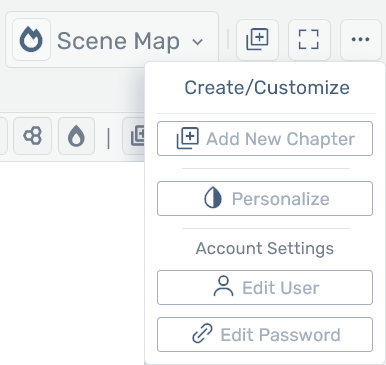
Clicking on the Left Side Hover Action Icon Menu or Menu Button(Three Lines) on the Top Menu displays:
- Story Map
- Plan/Plot Story
- Scene Map
- Scenes Outline
- Projects
- Example Story Projects/Primers
- Write Story
- Write
- Chapters
- Scenes/Story Beats
- Notes & Tasks
- ProofRead
- Story Elements
- Characters
- Story Settings
- App Elements
- Download/Open
- Answers Help
- Storyfyre Answers Help
- Contact Us
- Settings
- Edit Profile
- Edit Password
- Customize
Left Side Hover Action Menu Areas:
The Left Side Hover Action Menu automatically displays as a left side hover icon menu on larger screen sizes.
Storyfyre Software Areas
Each software area contains its own view and filters area, area toolbar, work area, and functionality set. Which will be explained in that area's answers help.
The software areas contain the following:
Scene Map:
Open, create, and use this project's scene map.
Scene Map Answers Help
Scenes Outline:
Open, create, and use this project's scenes outline.
Scenes Outline Answers Help
Projects:
Open, add, rename, delete, manage your writing projects
Projects Answers Help
Example Story Projects/Primers:
Create/load, open example story projects/primers. Example story primer projects to help you learn how to use Storyfyre fast.
Example Story Projects/Primers
Write:
Write in our focused writing app. Write/create scenes, story beats and more. With additional writing functionality. Add chapters and scenes/story beats. Write area is connected to the Scene Map, Scenes Outline, and the ProofRead Areas. Adding chapters and scenes/story beats in the Write Area automatically creates/updates your Scene Map.
Write Area Answers Help
Notes & Tasks:
Open, create, manage, track, drag/drop, and complete this project's new writing notes, story notes and tasks, change notes, draft notes, thoughts, rewrite ideas, ideas, writing tasks, revision notes, to work in.
Notes & Tasks Help
ProofRead:
Open and use this project's ProofReading area to proofread and clean up your story's writing. With additional proofreading functionality. The ProoRead Area is connected to the Scene Map, Scenes Outline, and the Write Areas. Use the ProofReading Area as a quick writing template, based on the Scene Map. Any changes made in the Scene Map and Write Area automatically update to the ProofRead Area.
ProofRead Answers Help
Characters:
Open, create, and use this project's characters.
Characters Answers Help
Story Settings (And Locations, World/Story Rules, And More...):
Open, create, and use this project's story settings, story locations, story & world rules, story/world groups, story/world items, images, and attributes. Manage all your story's story settings here. Any of the things etc... for your stories go here.
Story Settings Answers Help
Download/Backup/Export:
Quick download/backup each area to MSWord, PDF, HTML, WS File on your local device. Also Quick Download to review text or data in HTML or to use in other software.
Download/Backup/Export Answers Help
Filters/Tags, Story Arcs, Character Arcs, Open/Close, and More:
Filter/Tag, View, Open/Close, and focus in on different areas of your story, novel, book, thesis, or paper.
Use the filters/tags, View and Filters display area above the Toolbar area in any of the software areas to drill down, filter in on things you want to see at a glance and filter things out you don't want to see.
Use Story Arcs, Characters Arcs, Story Settings Arcs, story tags/user custom tags on the Toolbar and in the filters area to drill down and view exactly what you want to see/view/work on in your Scene Map/Story Map, and in your story.
Open/Close Chapters, Characters, or Story Settings to give you a greater focus on your view from their ellipsis menus. Close things you don't want to see. Open when needed.
Scene Map: Filters Answers Help
Limits
We know of some limits within Storyfyre, in each area we will try and list the ones we know of at the bottom, and ones which we intend to address with our future updates.
Storyfyre is growing daily, let us know what we can include, change, update. We appreciate your help.