Scene Map: How To Use
March 5, 2026 vers. 2.0
Let's Begin
Use your scene map to have fun, to quickly visually plan, map, describe, replan, fix, plot, replot, revise, organize your chapters, scenes, story beats.
Click the write icon for the scene/story beat to write, rewrite, revise it. Write your story, novel, book, paper, or just parts of your story fast.
Discovery writers use the scene map after you write your draft. Plotters use it before you write. If between, use the scene map during, after, before writing and during your writing/think time, or while revising, to get a better story.
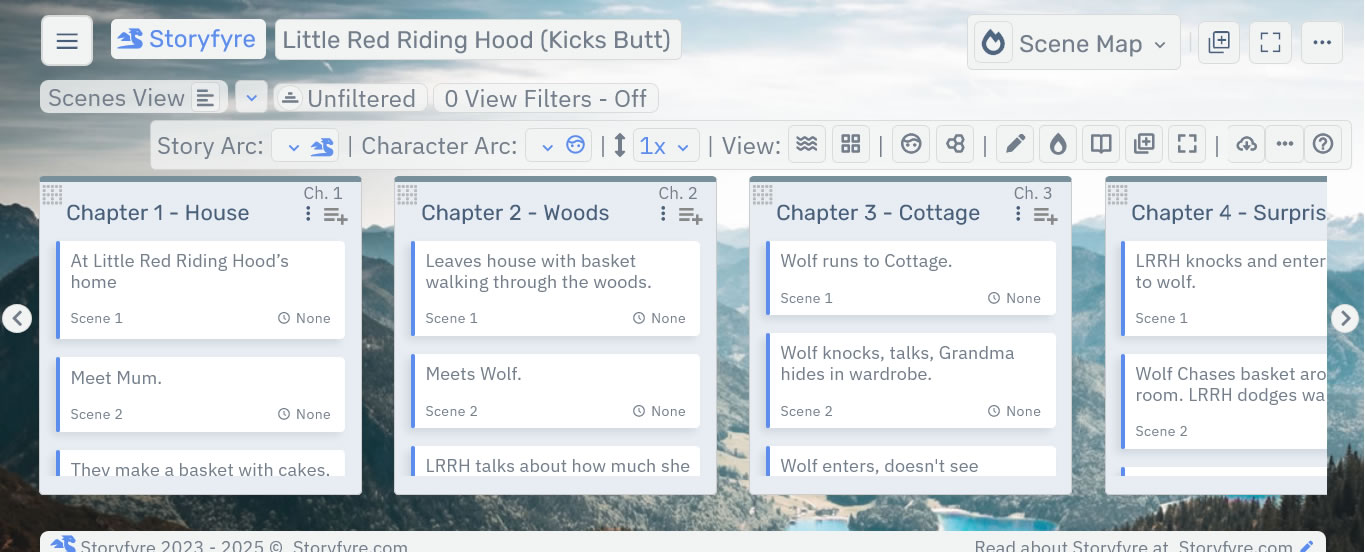
Use the scene map to better understand the story you are writing. Use your writing think time effectively. Add to your joy of writing.
Visually place your chapters, and your scene titles/story beats in chapters, with descriptions for each. Move them around to get the best story flow. Try things out. Move them back.
Storyfyre automatically reorders your story text to match your scene map. Then create/view/filter story arcs, character arcs, series arcs, story tags, custom tags etc... to focus your story view. Get a better story faster.
Download/export a story writing template to your favorite writing software or continue to use our focused Write writing app area and ProofRead area to quick write the story.
Storyfyre is the fastest way to think through and really get to know your story, after you've written it, before you do, or while you do. Use it to get the very best story. And to have more fun writing.
Plan. Write. Bible. Your Story. Finish more stories.
What this Page Covers
Basics
The scene map consists of a set of easy and quick-to-use areas to help you plan, map, revise, and organize your stories better after you write them, before writing them, or during writing them.
Ways to use, and things to use Storyfyre's Scene Map for?
Read: Ways to use, and things to use Storyfyre's Scene Map for?
Get Started
The Storyfyre Scene Map is divided into:
- The Top Menu
- View and Filters Area
- Area Toolbar
- The Chapter/Scene Work Area
- Left and Right Side Scroll Buttons
- And depending upon your writing device screen size a left hand Hover Action Menu
On smaller screen devices the left hand Hover Action Menu is hidden under a three-line hamburger menu on the top menu.
Click, tap(touch), hold down Left and Right Side Scroll Buttons to scroll. Double-click/double-tap(touch) scroll buttons for fast scroll to beginning or end.
Larger screens will display the left hand Hover Action Menu.
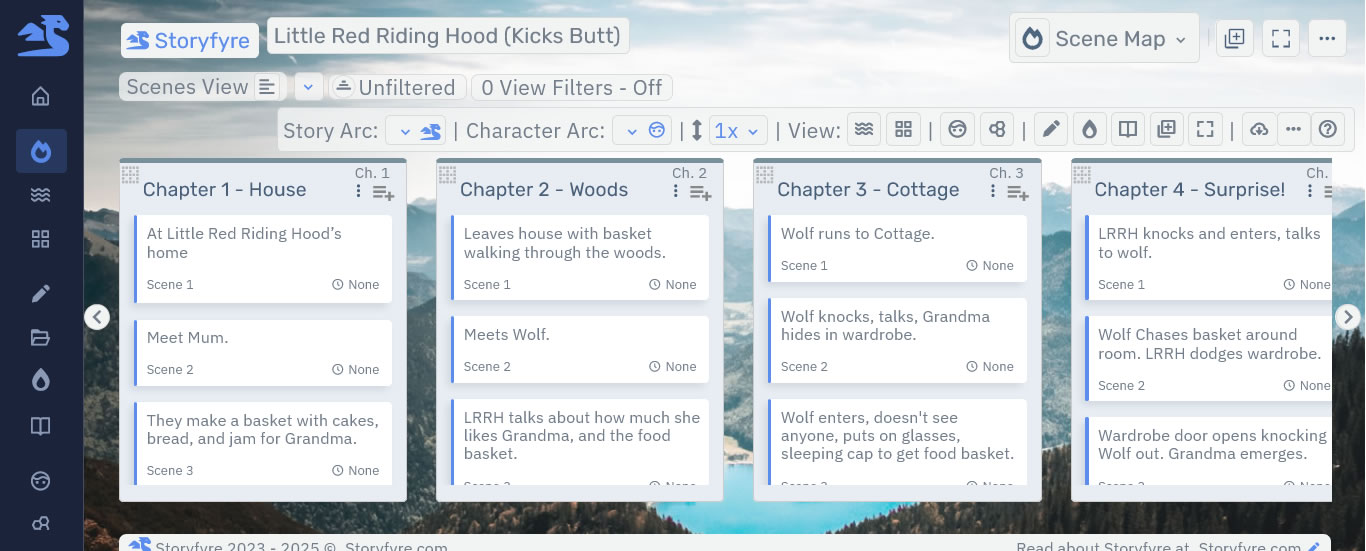
The Top Menu is the same for all areas of the software.

On the Scene Map's Top Menu we have added a quick action icon button for quickly adding chapters to the Scene Map. It is also found on and usable from the area's Scene Map toolbar.
Or you can use the 3 dot ellipsis Create/Customize menu icon button located on the Top Menu to quickly add chapters to the Scene Map and to access all the Create/Customize menu features.
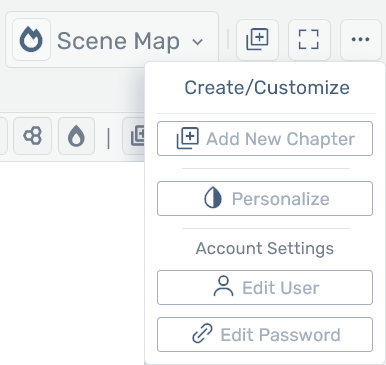
The Create/Customize menu features are discussed near the middle of the Storyfyre Guide:
Storyfyre: Areas Help Page.
Use the Scene Map Quick Tips found on the Scene Map's Toolbar under the help icon button for more fast start information.
The Scene Map Quick Tips help you quickly start using the Scene Map to map/plan/replan/revise a story.
Under the Top Menu you'll find the Scene Map View/Filter Area and Scene Map Toolbar.

We'll cover the Scene Map Toolbar and View/Filter Area separately in the Scene Map: Toolbar Help Area:
Scene Map: Toolbar
And in the Scene Map: Filters Help Area:
Scene Map: Filters
Scene Map Areas:
The scene map contains the following:
Scene Map: Toolbar
Navigate the Storyfyre software areas, Use the Scene Map filters and toolbar functionality
Scene Map: Toolbar
Scene Map: Chapters
Add/Create, edit, delete, manage, move, order, and reorder Chapters.
Scene Map: Chapters
Scene Map: Scenes/Story Beats/Sections
Add/Create, edit, delete, manage, move, order, and reorder Scenes/Story Beats/Sections.
Scene Map: Scenes/Story Beats/Sections
Scene Map: Filters
Filter your Story/Scene Map view - focus on the Scenes/Story Beats that you can see by story arcs, character arcs, series arcs, user created tags, story filters, story tags and more.Drill down and focus or keep it as light and easy as you want to. Create story arcs, character arcs, series arcs, user created tags, story filters, story tags, and more to filter your story/scene map.
Scene Map: Filters
Scene Map: Download/Backup/Export
Download, backup, export your scene map, story map, story bible, a story writing template, your story's scene map data.
Scene Map: Download/Backup/Export Help
Scene Map: Ways to use Storyfyre's Scene Map.
Ways to use, and things to use Storyfyre's Scene Map for?
Scene Map: Ways to use Storyfyre's Scene Map. Help
Limits
We know of some limits within the Storyfyre Beta, in each area we will try and list the ones we know of at the bottom, if there are any, and ones which we intend to address with our future updates.
Storyfyre is growing daily, let us know what we can include, change, update. We appreciate your help.