File: WriterStat Transportable .ws Backup File
November 22, 2024 vers. 1.0
Let's Begin
*This functionality is being worked on and changed. And getting ready for the next version and any .ws files downloaded in this version of the software will not/may not work in the next version(be aware). Instead use the text and data download options for backing up.*
Create a WriterStat(.ws) data snapshot backup file for your Storyfyre writing project's story bible, character bible, story settings & world/story rules bible or other areas for use later.
Save snapshots of your story/scene map, character view, story settings view in a .ws writing/story project.
Quick start by saving and loading a previous Storyfyre story bible/map, character bible/view, story settings & world/story rules bible/view .ws file for a new/existing writing or story project.
What this Page Covers
Basics
Storyfyre supports you and your need to store your downloads/exports/backups.
Locally, or in your own free cloud storage, or in our integrated automated encrypted Storyfyre cloud area backup/storage in your Storyfyre account.
Back up, store your downloads/exports/backups in the place and in the way that you want.
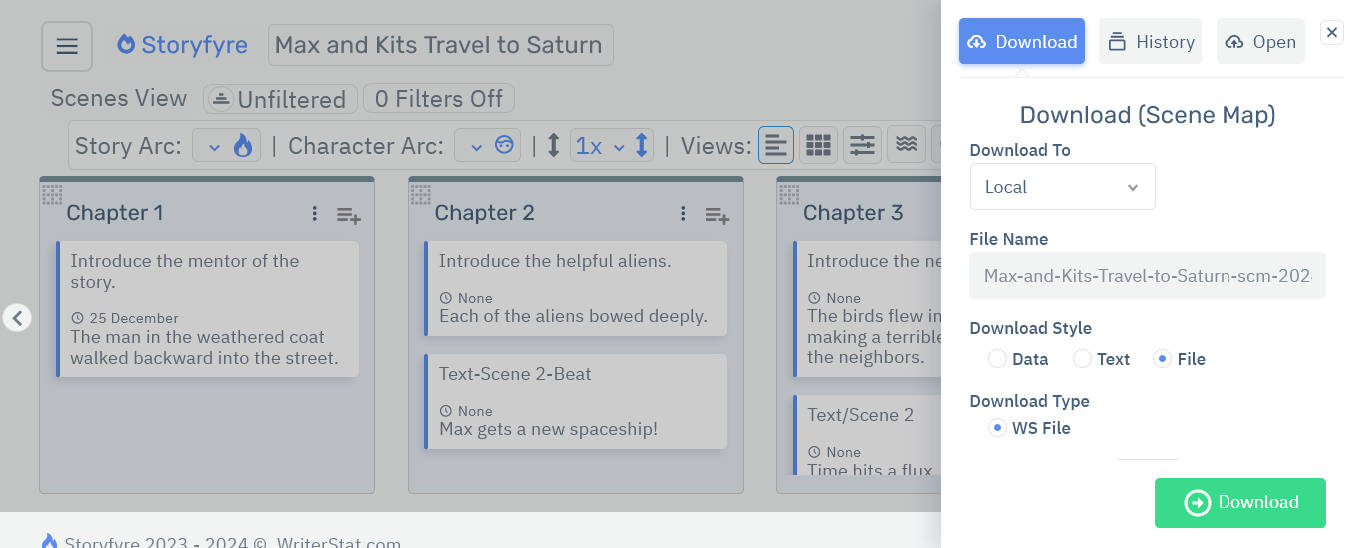
Download/back up frequently to save backups of important changes in any areas you want and backups you can take with you to be safe.
Uses
- Create and store Storyfyre WriterStat(.ws) snapshot data backup files.
- Use your own free personal cloud area(online) - Manually download then store your backup/downloaded files in your own free personal cloud area(online).
- Use the integrated automated encrypted Storyfyre cloud area backup/storage in your Storyfyre account.
Get Started
Open the Download Panel by selecting the download icon from any Storyfyre area toolbar.

Or select Download from the Storyfyre Top Menu - Area Quick Menu.
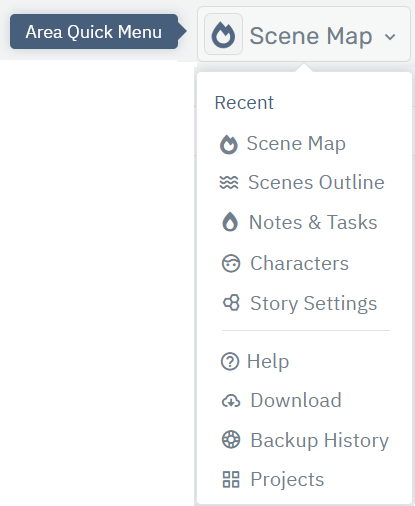
You can also open the Download/Open Panel from the Left Side Hover Action Menu Button in the top left corner of the Top Menu.
(Or on larger screens where the left hand menu is displayed, you can select Download/Open from the Left Side Hover Action Menu.)
Use: Personal Cloud
Download/export/back up the .ws snapshot backup file you want using the download to local option on the Download Panel.
Upload this file from your download directory to your personal cloud storage area. (Manually)
Free cloud storage:
- Dropbox(Free): Go to website and sign up for free.
- Google Drive(Free): Go to website and sign up for free.
- Microsoft OneDrive(Free): Go to website and sign up for free.
Use Storyfyre Cloud (Integrated Automated Encrypted)
Turn on integrated automated encrypted Storyfyre cloud storage in your Storyfyre account
Steps to turn on:
- Sign up for: Storyfyre Cloud Storage and Storyfyre Extras. (When available.)
- Once Storyfyre Cloud Storage and Storyfyre Extras is signed up for, integrated automated encrypted Storyfyre cloud storage is turned on in your Storyfyre account.
- Download: Download/export the file you want using the download to Cloud Backup option on the Download Panel.
- Cloud Backup Storage - Integrated Automated Encrypted
- Cloud Image Storage - Integrated Automated image storage for Characters, Story Settings and other areas.
- Personal Background Image Display - Use/host your own personal background images for use and display behind the Storyfyre software areas.
- + Plus More Storyfyre software functionality.
Done: Your Backups will now always automatically show up in your Storyfyre Backup History Tab on your Download Panel.
Storyfyre Cloud Storage and Storyfyre Extras Also Includes:
Sign up here: WriterStat Cloud Storage and Software Extras
Limits
The WriterStat(.ws) data snapshot backup file is being worked on for the next version. Please use the other backup options, text and data options instead to back up.
The WriterStat(.ws) data snapshot backup files will not work until the next version.
Let us know of any limits within the File: WriterStat Transportable .ws Backup File, that you discover and we'll include them in the next update.
Storyfyre is growing daily, let us know what we can include, change, update. We appreciate your help.